Showing posts with label #apps. Show all posts

Tuesday, March 31, 2015

#teachagtech -> How to Use Google Classroom


How to Use Google Classroom

This past year I have had the opportunity, along with my colleagues at Penn Manor, to use Google Classroom in my agricultural classroom.  Google Classroom is part of the Google Apps for Education suite that streamlines so many of the great Google tools I love - Google Docs, Google Forms, Google Sheets and Google Drawings (I could go on).  This short video shows how to set up your classes, add students and post items online using Google Classroom.  This learning management system allows you to post announcements, assignments and collect grades all in one place that seamlessly incorporates outside files and Google tools.

Below you will see my dashboard of classes.  It will list the classes along with any upcoming assignments.  (We just switched semesters today, so not many assignments are posted).  As you can see, you as a teacher can join other teacher's classes/groups as we have with the Greenhand Degree group.  I use Google Classroom to make an organizational stream for my Dairy Judging/Management CDE team.  There are many ways you can use Google Classroom to help with educational endeavors.


Below you will see what an individual class looks like.  I have opened up Floriculture.  You can see on the left sidebar there are upcoming assignments and the class code students can easily enter in order to enter the class.  (You can also personally invite them if you so choose.)  Across the top you will find the Stream, Students and About.  The stream is nothing more than a "stream" of the postings, assignments and other various items you post to your class.  You can delete them once done.  The Student tab is a listing of students who are enrolled in the class with a link to their school e-mail.  (I didn't include a picture of that page due to privacy protection - it isn't complicated.)  Next the About page lists your name, email and allows you to post materials.  Here you can list a syllabus, rules and regulations for your class or as it was so wisely suggested to me by Doug Masser at Pequea Valley, you can post information just pertaining to the lessons you are covering at that time for easy reference.  Below you can see I have posted a link to an identification quiz students were required to take and another assignment to post on their digital portfolios their experiences at Longwood Gardens.  It literally takes a few clicks to make this all happen.  


Below you can see a snapshot of the stream where you can choose to post a file from your computer, link something from GoogleDrive, embed a video or include a outside link.  Please notice the "Announcement" and "Assignment" options.  I will explain these further below.  


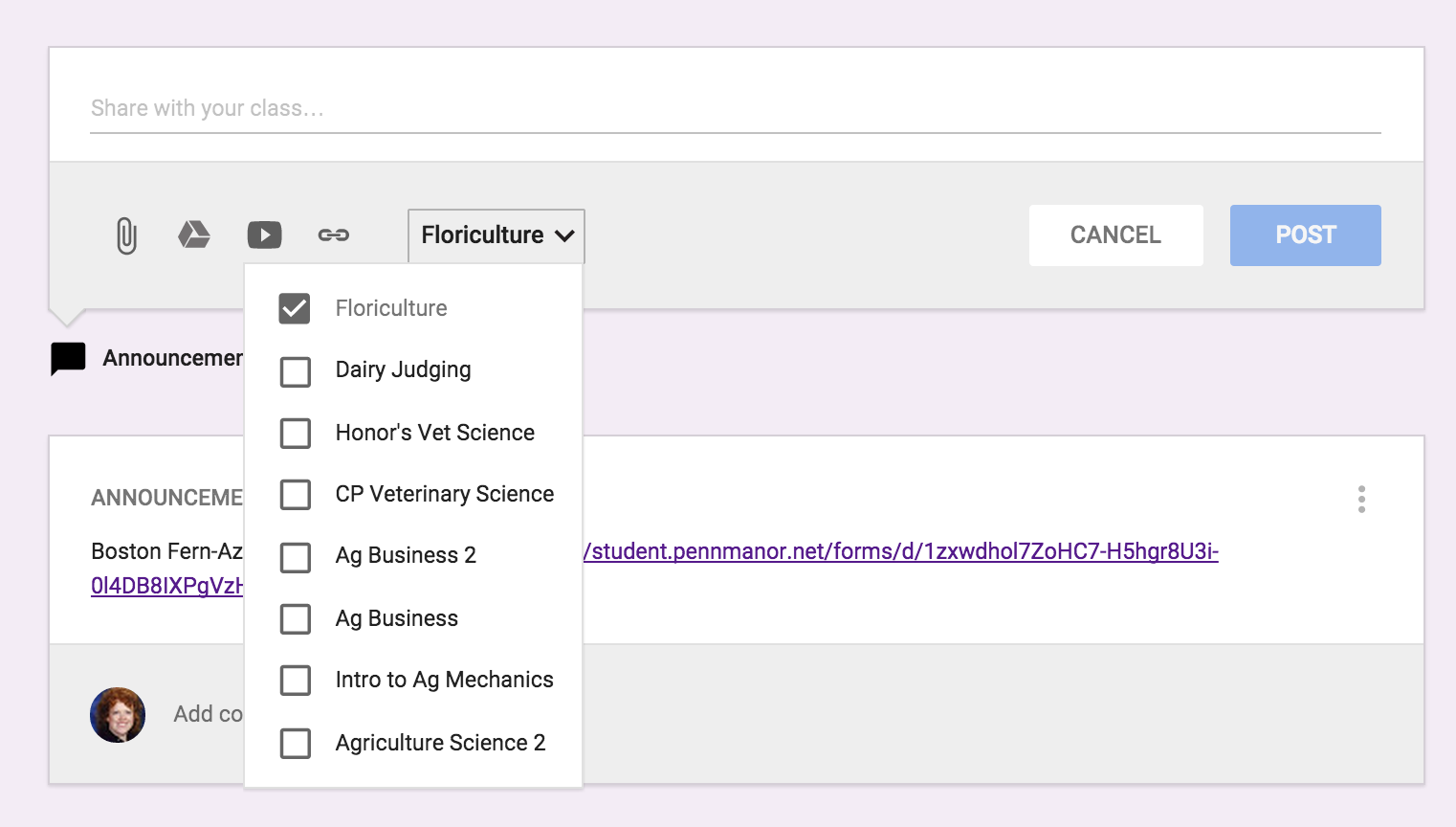
The next best thing about entering an assignment or announcement is you can mass post items.  The picture below is show my entering an "Announcement".  In addition, if you click on the class and the down arrow it will list all the classes you have created in Google Classroom.  So if for instance, you had an assignment you wanted all classes to do on SAE, you could just click on all the classes and it would immediately post to all other streams. 


Below is an example of entering an "Assignment" and you can see there are a few changes.  You can list the "Title of the Assignment", "Description of the Assignment" and set a due date.  Again you have the same options for the source of the assignment and whether you want to post it to multiple classes.  Once you have sent the assignment you can go back in and set the total points.  Once you have submissions, you can download all assignments to evaluate at one time.


There is even a Google Classroom app - pretty awesome stuff.  Here is a link on more information on how to acquire the app.  Below you can see what the classes look like on your mobile device and how class information is displayed.  I love the app option because I can be constantly connected to my classroom in an easy-to-use convenient way.  For example while I was at the Pete&C Conference, I came across a beautiful floral display at the Hershey Hotel, I immediately took a photo and posted the picture on the Floriculture stream and asked students to comment - good or bad.  They enjoyed this because not only was I involving them in what I was doing, but they were able to interact and interject their comments.  


As you can see, I'm a big fan of Google Classroom.  I like its simplicity.  So many times learning management systems get muddled in options which can loose students.  You never want the technology to get in the way of the learning it is supposed to be supporting.  I believe Google Classroom does a wonderful job of doing just this.  Enjoy!


Sunday, December 21, 2014

#teachagtech -> Using Infographics in the #TeachAg Classroom


Using Infographics in the #TeachAg Classroom


Using infographics in the #teachag classroom is another fun way of evaluating understanding in a creative way.  Infographics are becoming extremely popular to concentrate incredible amounts of information in an easy to read, compact form.  I have asked my students to create these graphics on two separate occasions this semester and even if the final project is neat to look at, there is a learning curve to develop the necessary operation skills along the way.  You will have to take some time and show students how each program works.  {For example: Do you select and slide the word bubble or just click and type.}

However, once students learn these programs are more intuitive than they originally thought, they begin to have fun with the graphics.  I feel it is important to introduce new forms of communication into the classroom as much as possible.  Using web-based infograph generators like Piktochart, visual.ly, infogr.am and the site I used to create the Chapter Degree Infographic above: easel.ly.  

If you would like to have the Greenhand Degree version of this, please visit my personal web page for the Greenhand Infographic.


***

If you have specific needs regarding technology in your classroom or have additional questions about infographics, please feel free to connect with me via the TeachAg! Technology Help Ticket


Yours in the Quest to be a Tech Savvy Aggie,


Thursday, December 4, 2014

#teachagtech -> For the Love of Nearpod

For the Love of Nearpod


For the Love of Nearpod...Awesome Presentation and Formative Assessment Tool!

We are surrounded by apps, new technologies and constant reminders of better tools for our classroom.  It can be overwhelming.  However, every once and a while, a platform truly does deliver what it promises.  Nearpod is one I have come to trust and appreciate as an effective tool in the classroom.  Nearpod takes ordinary presentations and makes them interactive.  You can use Power Point Presentations you already have developed and use them in Nearpod (they just need to be converted to PDF format.)


Here is a short video on an introduction to Nearpod:


Here is a video on the teacher's perspective in Nearpod using an animal science based presentation:


Here is a video on the student's perspective in Nearpod as the teacher is presenting a "Live Session":


You have many options when creating your Nearpod to add various forms of assessments.  You can do open-ended questions, polls, drawings, and quizzes.  The following video will help with showing you the various options within Nearpod:


I hope this great interactive tool can help diversify your teaching techniques.  I know I have enjoyed planning lessons around using Nearpod and increasing the engagement of my students.

Happy Nearpod'ing!

***

If you have specific needs regarding technology in your classroom or have additional questions about Nearpod, please feel free to connect with me via the TeachAg! Technology Help Ticket


Yours in the Quest to be a Tech Savvy Aggie,

Monday, November 24, 2014

#teachagtech -> Family Friendly Apps for these Holiday Times

Family Friendly Apps for the Holidays (and Classroom Too)

Cornman and Glock Family Spread - Thanksgiving 2013

Family Friendly Apps for the Holidays (and Classroom Too!)  Every year it seems the holiday season approaches more quickly.  I remember being told as a child, "enjoy your time now because time goes quicker as you grow older."  Sadly, I see this happening and can attest to the adage "times flies as you get older".  So I see time spent with family and friends as becoming more precious every year.  I hope during this holiday season, you are able to spend it with loved ones.  Thanksgiving is the holiday in which we travel the most, so the odds are good you will be able to see family you haven't seen in a while.  I know around this time this is when board games or puzzles were dug out to keep that healthy competition alive within the family dynamic.  If you make your way through some of the "old school" games and want a few fun alternatives, I thought it would be fun to show you a few apps you can use both in the classroom, but also just to have some fun.


The first app is colAR.  This is a 3D coloring app where drawings become 3D images.  They basically jump off the table at you and many are animated.  It truly suspends your concept of reality...or basically lets you step back and have a good chuckle.  Besides having fun with family, this can be used within the classroom directly as with the animal cell print out or as an interest approach for a creative project.  I especially like the "Dot Day" printable where you can draw anything within the circle and than once the you open the app and point your camera towards the paper you just drew on, it will animate the "dot".  {If you would like additional info on the Dot Day printable, please se this site from FableVision Learning.}  Go to the colAR website and scroll down for printables for your personal or classroom use.  At a later date, I will post about a more sophisticated app dealing with virtual reality.

Here is a video on what you might experience with colAR app:


***

The second app I would like to show you is Sock Puppets.  This is live animation app that allows you to voice record role playing situations.  At home, it could be a fun way to interact with family or ask a child to clean up their room.  At school, it could be a way for students to demonstrate they understand a concept via the role playing app.  It is easy to set-up and record.  You pick your characters and setting and than click the red record circle to record your voices.  If you need a tutorial, here is a YouTube video to guide you.

Here is a screenshot of the screen to record your voice prior to animation.


Another great live animation app is PuppetPals 2.  In this app, you can actually take a picture of yourself and use it as one of the heads of the interactive characters.  This is yet another opportunity for students to demonstrate understanding or to exchange information in a fun and interactive manner.  Here is a trailer on YouTube about PuppetPals 2.  

I hope these ideas can help in your classroom and add a bit of fun with family.  

All my best to you and yours during this holiday season.


***

If you have specific needs regarding technology in your classroom, please feel free to connect with me via the TeachAg! Technology Help Ticket


Yours in the Quest to be a Tech Savvy Aggie,

Thursday, November 13, 2014

#teachagtech -> Using Socrative in the Agriculture Classroom

Using Socrative to Engage Students in the Classroom


Using Socrative to Engage Students in the Classroom.  All agriculture educators are constantly juggling the living mechanism we know as agriculture education.  We manage many facets involving with the FFA, classroom instruction and SAE.  Tools that can be instantly and easily incorporated into the classroom are incredibly important.  Socrative is one of those tools and was introduced to me by my teaching colleague Neil Fellenbaum upon arriving at Penn Manor several years ago.  It is easy to create formative assessments to gage student understanding and provides a multitude of avenues to assess student learning.  It also allows you to collect student data to be used to differentiate instruction, regroup for review or be confident for a summative assessment.  I have used it many times as the "ticket out the door" or to do fun games to review for a test.  It is a very easy platform to use.  When you sign up, you receive a "classroom" number that is unique to you.  Students log on and use your classroom number to gain access to whatever challenge you place before them.


Here is an overview video on Socrative:


How to Create a Quiz:


How to Run a Quiz:


When you are finished with any type of evaluation, you can have reports sent or stored in many forms:


This is merely an introduction to Socrative.  As innovative educators, I'm sure you will find creative ways to incorporate this platform into your classroom.

***

If you have specific needs regarding technology in your classroom, please feel free to connect with me via the TeachAg! Technology Help Ticket


Yours in the Quest to be a Tech Savvy Aggie,

     
Diane Glock-Cornman
PSU Teach Ag! Technologist
@DGCornman
elearninag.com