Showing posts with label #teachagtech. Show all posts

Monday, May 25, 2015

#teachagtech -> How to Use Wordpress or Blogging in the Classroom


How to Use Wordpress and Blogging Platforms in the Classroom



How to Use Wordpress and Blogging Platforms in the Classroom.  In many of our classes, our students create work they should keep for future career aspirations.  As our society evolves into a digital and virtual society, it is imperative we teach good digital citizenship techniques (you can see a great resource here) and personal branding.  E-portfolios/blogs will be key in the future for various careers and to ensure our students can market their talents and skills.  Even if our students end up in a career that would not necessitate an e-portfolio or blog, it is prudent to expose this form of communication so our students know where their future customers, consumers and community members look for information.  

There are many platforms to choose from when considering a platform for your students' e-portfolios/blogs.  Obviously, we are limited to what our school district technology policies will permit.  However, even if you are in a district with very strict policies, you as the instructor could use a platform to showcase various class material where you can direct students if needed.  

Here are some key points to remember when guiding your students to showcase their material:

1.  Do not include personal information on main pages - they should not post pictures of themselves and addresses.  Mandate they keep a professional, appropriate level of personal information on their site.  If a student wants to include a digital resume, there are many options within different platforms where they can "lock" and "keep private" personal information and distribute that access information as they seek jobs.  

2.  Be professional.  Ask your students what they would think of walking past a storefront and seeing pictures of what is posted on their friends' feed on Instagram, Snapchat and Facebook.  Ask them if they would want to hire and spend their hard-earned cash on that individual/business after seeing those images.  Relate it to their own lives and discuss how these personal marketing slip-ups can be very costly now and in the future.  Remind them that just because they deleted a picture doesn't mean Facebook did - once it goes on the internet, it is there forever.

3.  Be organized and create a site that is easily navigated.  Take a moment and discuss visual elements of media with students.  Look at web pages that are effective and not.  If you are creating a site as an informational repository for your classroom, it is very important you make it easy to read and find information.  Otherwise it is just another webpage that can actually cause you more problems when a parent is looking for information and can't find it.  

4.  Create a place where students can interact.  Many of the platforms provide the opportunity for "comments" or classroom feeds.  Allow students to constructively critique peer's work - allow them to take course content where it makes sense to them.  The more they can create their own understanding of concepts, the higher the likelihood of them retaining the information.  

5.  Allow yourself to have fun and encourage your students to create.  This may be one of the first times you encourage your students to own their very own piece of internet real estate - allow them to explore and showcase their very best.  

I am very fortunate to be working in a district that supports integrating technology and the exploration of ideas to increase the technological experiences for our students.  Currently, I was given the privilege of creating a Wordpress site where Ms. Slates and I could showcase the work of our Plant Science classes.  I challenged my students to create their own e-portfolios where they had to take pictures of their work created in my Floriculture class and describe what they did - in the hopes they could use this later for job seeking.  It was amazing to see the creativity and intensity from students - they loved showcasing their work to the world.  I spent several class periods teaching the Wordpress platform, but also explaining digital citizenship, personal branding, marketing and photography.  (Obviously, the marketing components fit into learning about the business side of the floral industry - it may not work for all courses/curriculum.)  Wordpress is very easy to start and use; however, my goal in this situation was for students to be able to take these portfolios with them when they graduate.  Many times when students create blogs/portfolios/websites under the school district servers, they disappear when they graduate.   My goal was to create spaces where they own their materials.  Obviously not all districts will permit this and to some extent there is risk involved.  

There are other options other than Wordpress, such as Google Sites, Wix, Weebly and Pathbrite.  Hopefully, this will give you some ideas about how to go about creating and implementing this communicative tool in your classrooms.


Tuesday, March 31, 2015

#teachagtech -> How to Use Google Classroom


How to Use Google Classroom

This past year I have had the opportunity, along with my colleagues at Penn Manor, to use Google Classroom in my agricultural classroom.  Google Classroom is part of the Google Apps for Education suite that streamlines so many of the great Google tools I love - Google Docs, Google Forms, Google Sheets and Google Drawings (I could go on).  This short video shows how to set up your classes, add students and post items online using Google Classroom.  This learning management system allows you to post announcements, assignments and collect grades all in one place that seamlessly incorporates outside files and Google tools.

Below you will see my dashboard of classes.  It will list the classes along with any upcoming assignments.  (We just switched semesters today, so not many assignments are posted).  As you can see, you as a teacher can join other teacher's classes/groups as we have with the Greenhand Degree group.  I use Google Classroom to make an organizational stream for my Dairy Judging/Management CDE team.  There are many ways you can use Google Classroom to help with educational endeavors.


Below you will see what an individual class looks like.  I have opened up Floriculture.  You can see on the left sidebar there are upcoming assignments and the class code students can easily enter in order to enter the class.  (You can also personally invite them if you so choose.)  Across the top you will find the Stream, Students and About.  The stream is nothing more than a "stream" of the postings, assignments and other various items you post to your class.  You can delete them once done.  The Student tab is a listing of students who are enrolled in the class with a link to their school e-mail.  (I didn't include a picture of that page due to privacy protection - it isn't complicated.)  Next the About page lists your name, email and allows you to post materials.  Here you can list a syllabus, rules and regulations for your class or as it was so wisely suggested to me by Doug Masser at Pequea Valley, you can post information just pertaining to the lessons you are covering at that time for easy reference.  Below you can see I have posted a link to an identification quiz students were required to take and another assignment to post on their digital portfolios their experiences at Longwood Gardens.  It literally takes a few clicks to make this all happen.  


Below you can see a snapshot of the stream where you can choose to post a file from your computer, link something from GoogleDrive, embed a video or include a outside link.  Please notice the "Announcement" and "Assignment" options.  I will explain these further below.  


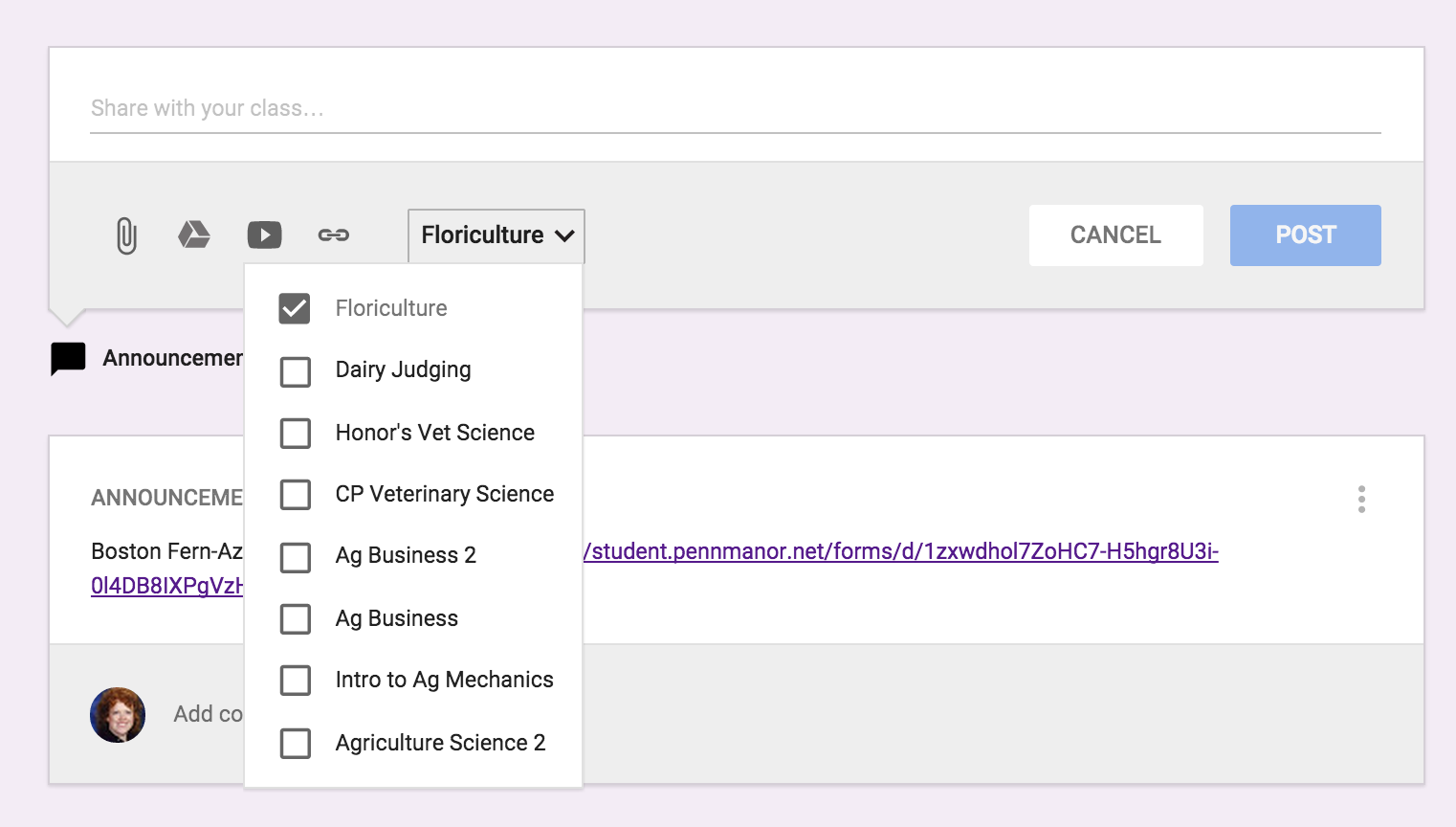
The next best thing about entering an assignment or announcement is you can mass post items.  The picture below is show my entering an "Announcement".  In addition, if you click on the class and the down arrow it will list all the classes you have created in Google Classroom.  So if for instance, you had an assignment you wanted all classes to do on SAE, you could just click on all the classes and it would immediately post to all other streams. 


Below is an example of entering an "Assignment" and you can see there are a few changes.  You can list the "Title of the Assignment", "Description of the Assignment" and set a due date.  Again you have the same options for the source of the assignment and whether you want to post it to multiple classes.  Once you have sent the assignment you can go back in and set the total points.  Once you have submissions, you can download all assignments to evaluate at one time.


There is even a Google Classroom app - pretty awesome stuff.  Here is a link on more information on how to acquire the app.  Below you can see what the classes look like on your mobile device and how class information is displayed.  I love the app option because I can be constantly connected to my classroom in an easy-to-use convenient way.  For example while I was at the Pete&C Conference, I came across a beautiful floral display at the Hershey Hotel, I immediately took a photo and posted the picture on the Floriculture stream and asked students to comment - good or bad.  They enjoyed this because not only was I involving them in what I was doing, but they were able to interact and interject their comments.  


As you can see, I'm a big fan of Google Classroom.  I like its simplicity.  So many times learning management systems get muddled in options which can loose students.  You never want the technology to get in the way of the learning it is supposed to be supporting.  I believe Google Classroom does a wonderful job of doing just this.  Enjoy!


Thursday, February 26, 2015

#teachagtech -> How to Use Google Forms for Easy ID Quizzes


How to Use Google Forms for Easy ID Quizzes:  I made a vow several years ago after grading I don't know how many identification quizzes that someday I would go paperless.  Looking back now, I know it was quite a lofty goal, but as technology becomes more user friendly, not one that isn't unattainable now.  Some experience in the classroom and a more grounded approach to life has definitely shown me that not all examinations should be given on paper or a computer, but there are definitely times when it would be most efficient and effective to test and provide feedback via a technological interface.

Here enters Google Forms.  I have already provided one post on the use of Google Forms for Formative Assessment, but wanted to share a system I use on a weekly basis to quiz students on various identification quizzes.  I use this heavily with my Floriculture and Veterinary Science class, but also use it in Intro to Ag Mechanics to ask students to identify parts and tools.

In the following video, I show you how to go about creating a Google Form that will streamline your assessment process when it comes to ID quizzes.


As I mentioned in the video, I would provide students with a hard copy of the name selections.  This seems to reduce test anxiety and provides students with an organizational tool as they progress through the quiz.


Yours in the Quest to be a Tech Savvy Aggie,


Sunday, December 21, 2014

#teachagtech -> Using Infographics in the #TeachAg Classroom


Using Infographics in the #TeachAg Classroom


Using infographics in the #teachag classroom is another fun way of evaluating understanding in a creative way.  Infographics are becoming extremely popular to concentrate incredible amounts of information in an easy to read, compact form.  I have asked my students to create these graphics on two separate occasions this semester and even if the final project is neat to look at, there is a learning curve to develop the necessary operation skills along the way.  You will have to take some time and show students how each program works.  {For example: Do you select and slide the word bubble or just click and type.}

However, once students learn these programs are more intuitive than they originally thought, they begin to have fun with the graphics.  I feel it is important to introduce new forms of communication into the classroom as much as possible.  Using web-based infograph generators like Piktochart, visual.ly, infogr.am and the site I used to create the Chapter Degree Infographic above: easel.ly.  

If you would like to have the Greenhand Degree version of this, please visit my personal web page for the Greenhand Infographic.


***

If you have specific needs regarding technology in your classroom or have additional questions about infographics, please feel free to connect with me via the TeachAg! Technology Help Ticket


Yours in the Quest to be a Tech Savvy Aggie,


Thursday, December 4, 2014

#teachagtech -> For the Love of Nearpod

For the Love of Nearpod


For the Love of Nearpod...Awesome Presentation and Formative Assessment Tool!

We are surrounded by apps, new technologies and constant reminders of better tools for our classroom.  It can be overwhelming.  However, every once and a while, a platform truly does deliver what it promises.  Nearpod is one I have come to trust and appreciate as an effective tool in the classroom.  Nearpod takes ordinary presentations and makes them interactive.  You can use Power Point Presentations you already have developed and use them in Nearpod (they just need to be converted to PDF format.)


Here is a short video on an introduction to Nearpod:


Here is a video on the teacher's perspective in Nearpod using an animal science based presentation:


Here is a video on the student's perspective in Nearpod as the teacher is presenting a "Live Session":


You have many options when creating your Nearpod to add various forms of assessments.  You can do open-ended questions, polls, drawings, and quizzes.  The following video will help with showing you the various options within Nearpod:


I hope this great interactive tool can help diversify your teaching techniques.  I know I have enjoyed planning lessons around using Nearpod and increasing the engagement of my students.

Happy Nearpod'ing!

***

If you have specific needs regarding technology in your classroom or have additional questions about Nearpod, please feel free to connect with me via the TeachAg! Technology Help Ticket


Yours in the Quest to be a Tech Savvy Aggie,