Showing posts with label Diane Glock Cornman. Show all posts

Friday, September 11, 2015

#teachagtech -> Teach Ag!! Technology Tips, Part 2 and the Signing Off as the PSU TeachAg! Tech

As my time as the PSU Teach Ag! Tech comes to an end, I have truly enjoyed posting and interacting with fellow agriculture educators.  At the heart of anything I develop, is the hope it can be of use to some of the hardest working educators I know.  We are innovators, counselors, coaches and our students' lifetime advisors.  I have truly appreciated the opportunity to serve in this manner and hope to be help in the future.  You can find me resuming blogging activities on my personal blog:  www.elearninag.com .


***

Teach Ag! Technology Tips Part 2:  Here is the second installment logging entries from the TeachAg E-mail Blasts located here.  There is a great deal of information here that can hopefully help you in your classroom.  


Using Mindmapping Tools to Connect Concepts

Implementing Technology in the Classroom with the SAMR Model

Using BrainPop to Expand Classroom Learning 

Newsela to Help with Assessing Student Reading Level

Find a Formative Assessment Tool in Kahoot!


Sunday, June 28, 2015

#teachagtech -> Social Media and Ag Education

^Image from EWebDesign


Social Media and Education.  To Snapchat or not to Snapchat, that is the question???  The image above is just a glimpse of the many options we have to engage with other people today.  As educators, I believe we are most closely connected to witnessing how young people interact.  We are the neutral zone - we're not quite parents, yet as agriculture educators we connect with our students in learning and activities outside the the classroom, so students engage us on a higher level than most.  According to one survey, teenagers are beginning to migrate away from Facebook simply due to the increasing adult presence - the "grandma effect".  So how do we develop relevant educational learning opportunities that meet our students where they are?  First, we must learn where they are (other than witnessing all the duck and fishy faces - and we can't forget #selfiesfordays - that end up on Snapchat).  This article from the Pew Research Center outlines where our youth are engaged in social media.  It does a great job of outlining motives as well as social-economic trends.  


Over the last few years, I have explored how others interact on social media and the learning opportunities that are out there.  From the usage of hashtags to learning different platforms, one thing remains the same - we all want to be recognized and validated, while meaningfully learning.  What was historically a local community festival is now a Facebook feed, so how can we make the best of it?   One of the platforms I truly struggled to see the educational value in is Snapchat.  (I believe it was the never-ending fishy faces on van rides to conventions with students.)  So, I challenged myself to see how this could be used.  I became inspired by a Snapchat feed from a Veterinarian - Dr. Cody Creelman.  I first found him on Instagram (vetpracticevahs) as I was trying to find feeds to supplement my Veterinary Science class.  I actually encouraged my Honors and CP Veterinary Science class to follow him and others so they could hear industry lingo and see real life.  One day in class, we were actually talking about the disorders of the musculature of the heart and in his IG feed, he had a posting about the same thing - perfect real world application without leaving the classroom.  As it turns out, he also has a Snapchat (creelmancody).  On both social media platforms he shows day-to-day happenings in his veterinary practice.  Everything from interstitial pneumonia, acidosis to problems with the eye; however, he does this in a fun and engaging manner.  After connecting with him on Snapchat, he referred me to the Ontario Vet College (Snapchat & Instagram: ontvetcollege) and Ms. Jane Dawkins, Marketing Communications Officer at Ontario Vet College.  After contacting Ms. Dawkins, she recommend I check out their snap stories on YouTube.   What a great idea!  Ms. Dawkins along with current students and alumni capture their work and produce videos to show the world.  I have been inspired by this creativity and willingness to share.  As we move forward in the Open Source and free education movements, I believe we must be willing to adapt and find new ways to "educate". 

What if we as agriculture educators produced professional Snapchats and began sharing what we know?  To engage with our students and the world on another level and create fun materials that show our students and others we care enough to keep expanding our communication skills, while showing them what they are doing is important.   


^A screenshot of a Snapchat while doing a SAE visit weighing animals #saesnaps (sorry for the chunk out of the emblem - it's on our scales, so it works hard!)

Wouldn't it be cool to Snapchat our SAE visits and than combine them for the end of the year banquet?  The sky is the limit if we are willing to venture out.  I've already begun a fun little project of #saesnaps.....we'll see how it goes.  In the end, we may not all be able or want to adopt all forms of social media or learning systems, but in the end, we can always be inspired by others to constantly transform our educational approach.  {I would like to thank Dr. Cody Creelman and Ms. Jane Dawkins for allowing me to use their information and story for this post.  Your endeavors to educate have inspired others to act.}


Monday, May 25, 2015

#teachagtech -> How to Use Wordpress or Blogging in the Classroom


How to Use Wordpress and Blogging Platforms in the Classroom


How to Use Wordpress and Blogging Platforms in the Classroom.  In many of our classes, our students create work they should keep for future career aspirations.  As our society evolves into a digital and virtual society, it is imperative we teach good digital citizenship techniques (you can see a great resource here) and personal branding.  E-portfolios/blogs will be key in the future for various careers and to ensure our students can market their talents and skills.  Even if our students end up in a career that would not necessitate an e-portfolio or blog, it is prudent to expose this form of communication so our students know where their future customers, consumers and community members look for information.  

There are many platforms to choose from when considering a platform for your students' e-portfolios/blogs.  Obviously, we are limited to what our school district technology policies will permit.  However, even if you are in a district with very strict policies, you as the instructor could use a platform to showcase various class material where you can direct students if needed.  

Here are some key points to remember when guiding your students to showcase their material:

1.  Do not include personal information on main pages - they should not post pictures of themselves and addresses.  Mandate they keep a professional, appropriate level of personal information on their site.  If a student wants to include a digital resume, there are many options within different platforms where they can "lock" and "keep private" personal information and distribute that access information as they seek jobs.  

2.  Be professional.  Ask your students what they would think of walking past a storefront and seeing pictures of what is posted on their friends' feed on Instagram, Snapchat and Facebook.  Ask them if they would want to hire and spend their hard-earned cash on that individual/business after seeing those images.  Relate it to their own lives and discuss how these personal marketing slip-ups can be very costly now and in the future.  Remind them that just because they deleted a picture doesn't mean Facebook did - once it goes on the internet, it is there forever.

3.  Be organized and create a site that is easily navigated.  Take a moment and discuss visual elements of media with students.  Look at web pages that are effective and not.  If you are creating a site as an informational repository for your classroom, it is very important you make it easy to read and find information.  Otherwise it is just another webpage that can actually cause you more problems when a parent is looking for information and can't find it.  

4.  Create a place where students can interact.  Many of the platforms provide the opportunity for "comments" or classroom feeds.  Allow students to constructively critique peer's work - allow them to take course content where it makes sense to them.  The more they can create their own understanding of concepts, the higher the likelihood of them retaining the information.  

5.  Allow yourself to have fun and encourage your students to create.  This may be one of the first times you encourage your students to own their very own piece of internet real estate - allow them to explore and showcase their very best.  

I am very fortunate to be working in a district that supports integrating technology and the exploration of ideas to increase the technological experiences for our students.  Currently, I was given the privilege of creating a Wordpress site where Ms. Slates and I could showcase the work of our Plant Science classes.  I challenged my students to create their own e-portfolios where they had to take pictures of their work created in my Floriculture class and describe what they did - in the hopes they could use this later for job seeking.  It was amazing to see the creativity and intensity from students - they loved showcasing their work to the world.  I spent several class periods teaching the Wordpress platform, but also explaining digital citizenship, personal branding, marketing and photography.  (Obviously, the marketing components fit into learning about the business side of the floral industry - it may not work for all courses/curriculum.)  Wordpress is very easy to start and use; however, my goal in this situation was for students to be able to take these portfolios with them when they graduate.  Many times when students create blogs/portfolios/websites under the school district servers, they disappear when they graduate.   My goal was to create spaces where they own their materials.  Obviously not all districts will permit this and to some extent there is risk involved.  

There are other options other than Wordpress, such as Google Sites, Wix, Weebly and Pathbrite.  Hopefully, this will give you some ideas about how to go about creating and implementing this communicative tool in your classrooms.


Tuesday, March 31, 2015

#teachagtech -> How to Use Google Classroom


How to Use Google Classroom

This past year I have had the opportunity, along with my colleagues at Penn Manor, to use Google Classroom in my agricultural classroom.  Google Classroom is part of the Google Apps for Education suite that streamlines so many of the great Google tools I love - Google Docs, Google Forms, Google Sheets and Google Drawings (I could go on).  This short video shows how to set up your classes, add students and post items online using Google Classroom.  This learning management system allows you to post announcements, assignments and collect grades all in one place that seamlessly incorporates outside files and Google tools.

Below you will see my dashboard of classes.  It will list the classes along with any upcoming assignments.  (We just switched semesters today, so not many assignments are posted).  As you can see, you as a teacher can join other teacher's classes/groups as we have with the Greenhand Degree group.  I use Google Classroom to make an organizational stream for my Dairy Judging/Management CDE team.  There are many ways you can use Google Classroom to help with educational endeavors.


Below you will see what an individual class looks like.  I have opened up Floriculture.  You can see on the left sidebar there are upcoming assignments and the class code students can easily enter in order to enter the class.  (You can also personally invite them if you so choose.)  Across the top you will find the Stream, Students and About.  The stream is nothing more than a "stream" of the postings, assignments and other various items you post to your class.  You can delete them once done.  The Student tab is a listing of students who are enrolled in the class with a link to their school e-mail.  (I didn't include a picture of that page due to privacy protection - it isn't complicated.)  Next the About page lists your name, email and allows you to post materials.  Here you can list a syllabus, rules and regulations for your class or as it was so wisely suggested to me by Doug Masser at Pequea Valley, you can post information just pertaining to the lessons you are covering at that time for easy reference.  Below you can see I have posted a link to an identification quiz students were required to take and another assignment to post on their digital portfolios their experiences at Longwood Gardens.  It literally takes a few clicks to make this all happen.  


Below you can see a snapshot of the stream where you can choose to post a file from your computer, link something from GoogleDrive, embed a video or include a outside link.  Please notice the "Announcement" and "Assignment" options.  I will explain these further below.  


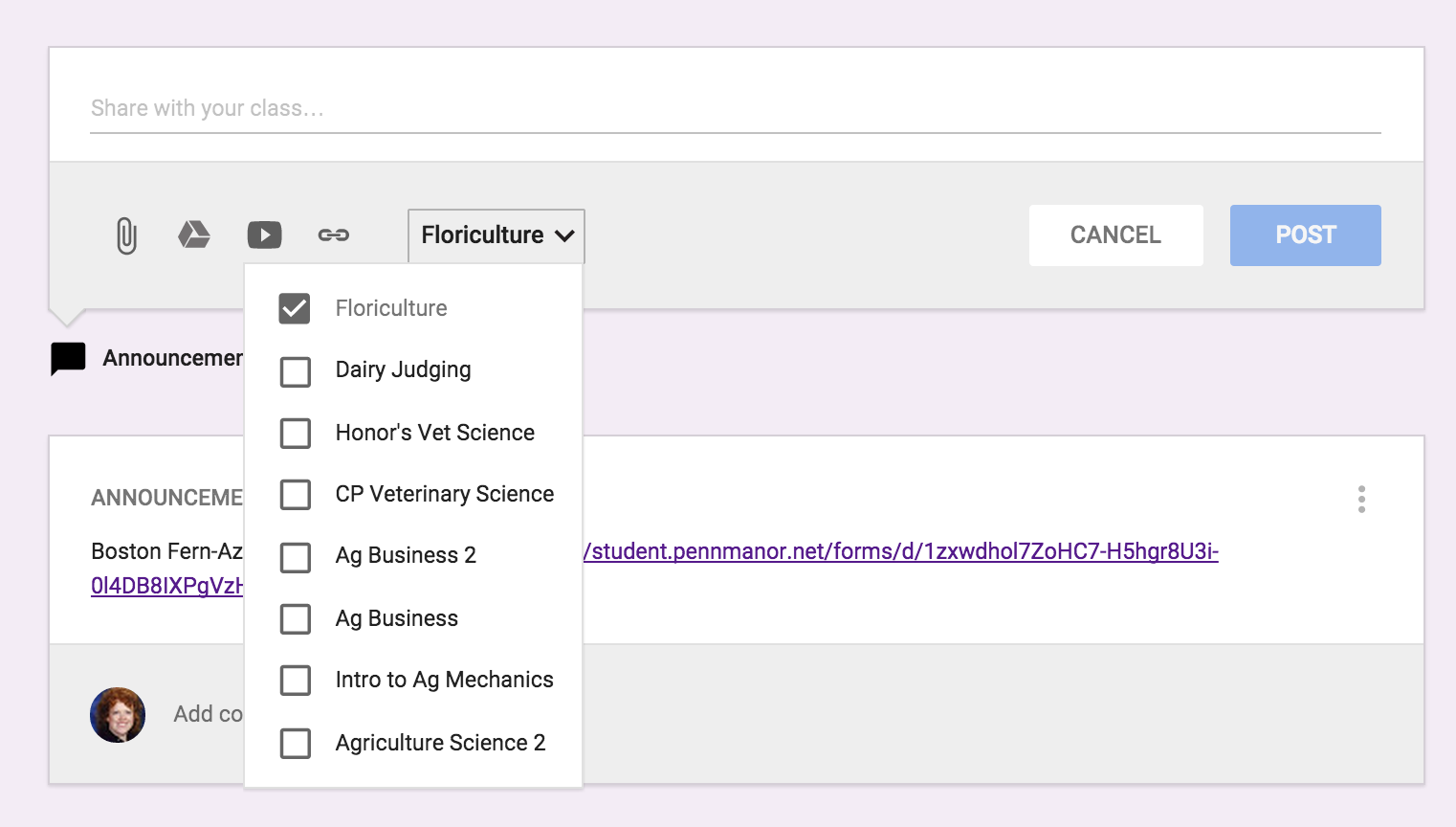
The next best thing about entering an assignment or announcement is you can mass post items.  The picture below is show my entering an "Announcement".  In addition, if you click on the class and the down arrow it will list all the classes you have created in Google Classroom.  So if for instance, you had an assignment you wanted all classes to do on SAE, you could just click on all the classes and it would immediately post to all other streams. 


Below is an example of entering an "Assignment" and you can see there are a few changes.  You can list the "Title of the Assignment", "Description of the Assignment" and set a due date.  Again you have the same options for the source of the assignment and whether you want to post it to multiple classes.  Once you have sent the assignment you can go back in and set the total points.  Once you have submissions, you can download all assignments to evaluate at one time.


There is even a Google Classroom app - pretty awesome stuff.  Here is a link on more information on how to acquire the app.  Below you can see what the classes look like on your mobile device and how class information is displayed.  I love the app option because I can be constantly connected to my classroom in an easy-to-use convenient way.  For example while I was at the Pete&C Conference, I came across a beautiful floral display at the Hershey Hotel, I immediately took a photo and posted the picture on the Floriculture stream and asked students to comment - good or bad.  They enjoyed this because not only was I involving them in what I was doing, but they were able to interact and interject their comments.  


As you can see, I'm a big fan of Google Classroom.  I like its simplicity.  So many times learning management systems get muddled in options which can loose students.  You never want the technology to get in the way of the learning it is supposed to be supporting.  I believe Google Classroom does a wonderful job of doing just this.  Enjoy!


Thursday, March 5, 2015

#teachagtech -> Teach Ag!! Technology Tips Pt 1

Teach Ag! Technology Tips Part 1:  I am little over half of my tenure as the PSU TeachAg Technologist.  I thought it would be a good time to do an inventory of posts I have been doing for the TeachAg E-mail Blasts located here.  There is a great deal of information here that can hopefully help you in your classroom.


Using Twitter in the Classroom and Beyond
Twitter can be a useful tool in the Teach Ag! Classroom. This is a short guide on how to begin using Twitter in the agriculture classroom.

Discover Pennsylvania Learns via iTunes.
Utilize online teaching materials aligned to help students become more successful on Keystone exams.


Managing your e-reputation and being a good digital citizen is crucial to future success.

Using WeekCal App to Organize Our Busy Life

The WeekCal App is a handy app to help organize our busy agriculture educator lives.

Keeping Students on Task While Using Devices

With the ever-increasing push to use technology in the classroom, it can be a challenge to manage students' attention. This Edudemic article poses some great solutions for this problem.

ck-12 Offers Supplemental Materials for your Classroom

ck-12 offers standards-aligned materials for your classroom.

Use Graphite to Narrow App Options

Use this online tool to sort through webpages, games and apps for classroom use.

Using Remind 101 for all areas in the Ag Ed Program

This one way messaging platform allows you to remind students of anything for class, SAE, or FFA.

Find Inspiration with Pinterest

Use Pinterest for inspiration in all areas of the agriculture classroom and beyond.

Using Adobe Flash for Differentiated Learning of the FFA Creed

Using animation with sound can help different types of learners more efficiently learn the FFA Creed.

Generating QR Codes and Short URL's

Generating QR Codes and Short URL's

Make a visual impact - Use Haiku Deck

Haiku Deck is an alternative to commonly used presentation programs. It has a high visual appeal to present minimal information.

Thursday, February 26, 2015

#teachagtech -> How to Use Google Forms for Easy ID Quizzes


How to Use Google Forms for Easy ID Quizzes:  I made a vow several years ago after grading I don't know how many identification quizzes that someday I would go paperless.  Looking back now, I know it was quite a lofty goal, but as technology becomes more user friendly, not one that isn't unattainable now.  Some experience in the classroom and a more grounded approach to life has definitely shown me that not all examinations should be given on paper or a computer, but there are definitely times when it would be most efficient and effective to test and provide feedback via a technological interface.

Here enters Google Forms.  I have already provided one post on the use of Google Forms for Formative Assessment, but wanted to share a system I use on a weekly basis to quiz students on various identification quizzes.  I use this heavily with my Floriculture and Veterinary Science class, but also use it in Intro to Ag Mechanics to ask students to identify parts and tools.

In the following video, I show you how to go about creating a Google Form that will streamline your assessment process when it comes to ID quizzes.


As I mentioned in the video, I would provide students with a hard copy of the name selections.  This seems to reduce test anxiety and provides students with an organizational tool as they progress through the quiz.


Yours in the Quest to be a Tech Savvy Aggie,


Sunday, December 21, 2014

#teachagtech -> Using Infographics in the #TeachAg Classroom


Using Infographics in the #TeachAg Classroom


Using infographics in the #teachag classroom is another fun way of evaluating understanding in a creative way.  Infographics are becoming extremely popular to concentrate incredible amounts of information in an easy to read, compact form.  I have asked my students to create these graphics on two separate occasions this semester and even if the final project is neat to look at, there is a learning curve to develop the necessary operation skills along the way.  You will have to take some time and show students how each program works.  {For example: Do you select and slide the word bubble or just click and type.}

However, once students learn these programs are more intuitive than they originally thought, they begin to have fun with the graphics.  I feel it is important to introduce new forms of communication into the classroom as much as possible.  Using web-based infograph generators like Piktochart, visual.ly, infogr.am and the site I used to create the Chapter Degree Infographic above: easel.ly.  

If you would like to have the Greenhand Degree version of this, please visit my personal web page for the Greenhand Infographic.


***

If you have specific needs regarding technology in your classroom or have additional questions about infographics, please feel free to connect with me via the TeachAg! Technology Help Ticket


Yours in the Quest to be a Tech Savvy Aggie,


Thursday, December 4, 2014

#teachagtech -> For the Love of Nearpod

For the Love of Nearpod


For the Love of Nearpod...Awesome Presentation and Formative Assessment Tool!

We are surrounded by apps, new technologies and constant reminders of better tools for our classroom.  It can be overwhelming.  However, every once and a while, a platform truly does deliver what it promises.  Nearpod is one I have come to trust and appreciate as an effective tool in the classroom.  Nearpod takes ordinary presentations and makes them interactive.  You can use Power Point Presentations you already have developed and use them in Nearpod (they just need to be converted to PDF format.)


Here is a short video on an introduction to Nearpod:


Here is a video on the teacher's perspective in Nearpod using an animal science based presentation:


Here is a video on the student's perspective in Nearpod as the teacher is presenting a "Live Session":


You have many options when creating your Nearpod to add various forms of assessments.  You can do open-ended questions, polls, drawings, and quizzes.  The following video will help with showing you the various options within Nearpod:


I hope this great interactive tool can help diversify your teaching techniques.  I know I have enjoyed planning lessons around using Nearpod and increasing the engagement of my students.

Happy Nearpod'ing!

***

If you have specific needs regarding technology in your classroom or have additional questions about Nearpod, please feel free to connect with me via the TeachAg! Technology Help Ticket


Yours in the Quest to be a Tech Savvy Aggie,

Monday, November 24, 2014

#teachagtech -> Family Friendly Apps for these Holiday Times

Family Friendly Apps for the Holidays (and Classroom Too)

Cornman and Glock Family Spread - Thanksgiving 2013

Family Friendly Apps for the Holidays (and Classroom Too!)  Every year it seems the holiday season approaches more quickly.  I remember being told as a child, "enjoy your time now because time goes quicker as you grow older."  Sadly, I see this happening and can attest to the adage "times flies as you get older".  So I see time spent with family and friends as becoming more precious every year.  I hope during this holiday season, you are able to spend it with loved ones.  Thanksgiving is the holiday in which we travel the most, so the odds are good you will be able to see family you haven't seen in a while.  I know around this time this is when board games or puzzles were dug out to keep that healthy competition alive within the family dynamic.  If you make your way through some of the "old school" games and want a few fun alternatives, I thought it would be fun to show you a few apps you can use both in the classroom, but also just to have some fun.


The first app is colAR.  This is a 3D coloring app where drawings become 3D images.  They basically jump off the table at you and many are animated.  It truly suspends your concept of reality...or basically lets you step back and have a good chuckle.  Besides having fun with family, this can be used within the classroom directly as with the animal cell print out or as an interest approach for a creative project.  I especially like the "Dot Day" printable where you can draw anything within the circle and than once the you open the app and point your camera towards the paper you just drew on, it will animate the "dot".  {If you would like additional info on the Dot Day printable, please se this site from FableVision Learning.}  Go to the colAR website and scroll down for printables for your personal or classroom use.  At a later date, I will post about a more sophisticated app dealing with virtual reality.

Here is a video on what you might experience with colAR app:


***

The second app I would like to show you is Sock Puppets.  This is live animation app that allows you to voice record role playing situations.  At home, it could be a fun way to interact with family or ask a child to clean up their room.  At school, it could be a way for students to demonstrate they understand a concept via the role playing app.  It is easy to set-up and record.  You pick your characters and setting and than click the red record circle to record your voices.  If you need a tutorial, here is a YouTube video to guide you.

Here is a screenshot of the screen to record your voice prior to animation.


Another great live animation app is PuppetPals 2.  In this app, you can actually take a picture of yourself and use it as one of the heads of the interactive characters.  This is yet another opportunity for students to demonstrate understanding or to exchange information in a fun and interactive manner.  Here is a trailer on YouTube about PuppetPals 2.  

I hope these ideas can help in your classroom and add a bit of fun with family.  

All my best to you and yours during this holiday season.


***

If you have specific needs regarding technology in your classroom, please feel free to connect with me via the TeachAg! Technology Help Ticket


Yours in the Quest to be a Tech Savvy Aggie,

Thursday, November 13, 2014

#teachagtech -> Using Socrative in the Agriculture Classroom

Using Socrative to Engage Students in the Classroom


Using Socrative to Engage Students in the Classroom.  All agriculture educators are constantly juggling the living mechanism we know as agriculture education.  We manage many facets involving with the FFA, classroom instruction and SAE.  Tools that can be instantly and easily incorporated into the classroom are incredibly important.  Socrative is one of those tools and was introduced to me by my teaching colleague Neil Fellenbaum upon arriving at Penn Manor several years ago.  It is easy to create formative assessments to gage student understanding and provides a multitude of avenues to assess student learning.  It also allows you to collect student data to be used to differentiate instruction, regroup for review or be confident for a summative assessment.  I have used it many times as the "ticket out the door" or to do fun games to review for a test.  It is a very easy platform to use.  When you sign up, you receive a "classroom" number that is unique to you.  Students log on and use your classroom number to gain access to whatever challenge you place before them.


Here is an overview video on Socrative:


How to Create a Quiz:


How to Run a Quiz:


When you are finished with any type of evaluation, you can have reports sent or stored in many forms:


This is merely an introduction to Socrative.  As innovative educators, I'm sure you will find creative ways to incorporate this platform into your classroom.

***

If you have specific needs regarding technology in your classroom, please feel free to connect with me via the TeachAg! Technology Help Ticket


Yours in the Quest to be a Tech Savvy Aggie,

     
Diane Glock-Cornman
PSU Teach Ag! Technologist
@DGCornman
elearninag.com

Tuesday, October 21, 2014

Are you a good Digital Citizen? #AEE100 Engages with the Penn State Teach Ag! Technologist


On Thursday October 16th, Penn State had the privilege of meeting some awesome agriculture education students from Penn Manor FFA chapter who came along with their teacher Ms. Diane Glock-Cornman (@DGCornman) for a day of education and fun!
Ms.Diane Glock-Cornman is our PSU Teach Ag! Technologist and specializes in teaching us new methods of social media and computer uses. Along with bringing five of her own students, she came and taught a class for AEE 100 on “Good Digital Citizenship”. She stressed the importance of noticing in your schools the digital divide and how much access your students have to a computer at home and at school. During her presentation, she also showed the video below about statistics and facts about how social media interacts with our society and world.

Avengers back row, Penn Manor students front row.
While Ms. Cornman was teaching, her five students were able to go out and have fun with the Teach Ag! Avengers! They were able to tour campus, try out Creamery ice cream, get a picture at the lion shrine, and so much more! All five students came up with a goal of seeing if agriculture education was right for them and had a better idea when they left campus.

Overall it was a successful day and everyone had a blast! If you have any questions about social media interactions or would like to talk to Ms. Cornman, you can tweet at her (@DGCornman).

To learn more about starting on the path to having a career that makes a positive impact on the lives of students across the globe by becoming an agricultural educator, please contact the agricultural teacher education program at teachag@psu.edu. Follow us on Twitter at TeachAgPSU, on Facebook, or on our blog!


 Olivia Murphy-Sweet
Student Blogger
Teach Ag! Avenger
Twitter Handle- @OSweetMurph
 2016 Agricultural Education Student Teacher

Thursday, October 2, 2014

#teachagtech -> Using Google Forms for Formative Assessment

 Students in classroom


Assessments are everywhere, but one way to ease the burden of constantly assessing students’ understanding is using Google Forms for formative assessments.  I have used this several times already and have enjoyed seeing the student responses to the automatic feedback. 


To learn how to set-up a Google Form, please watch the following video:


{For anyone who wants to use Evernote as a repository for information and would like to know where you can find your Evernote e-mail:  Log-in or Sign-up for Evernote >  In the web based version you will see your name in the upper right corner > Click on your name > Than click on "Account Settings".  There at the bottom of your "Account Summary" page you will find your Evernote e-mail which ends in "@m.evernote.com".  You can copy this into your e-mail contacts for easy reference to save a whole host of materials.}


Once you have the Google Form established, you will want to add the Flubaroo script in order to automatically grade the assignment.  In addition, you can e-mail student results to them with the answer key if you choose.  Please review the following video for this information:


When you have e-mailed the results of the assessment out to students, this is what they will receive:


You too will receive an e-mail that shows you the number of student responses, whether you included the key, and a quick link to the “Responses” form.  It looks something like this:


I am beginning to love the Google Form tool.  It provides a way for us to collect information for our FFA Chapters, survey students or evaluate the level of our students’ understanding.  {For those non-educators reading, you can do the same for various types of feedback.  Perhaps you had a safety briefing at your place of business and you want to see how much information your employees retained prior to a formal qualifying exam, you could poll them the same way.}  

As a side note:  this blog post came about through a collaboration between myself and my PAAE / PSU Center for Professional Department mentee +Caleb Wright (@thewrightcaleb).  It is a wonderful experience to help with real-time questions to help in classrooms.  Caleb wanted a way to easily assess his students, but have the material available later for students to study for the summative assessment.  Proud of our young teachers out there who are innovative and working hard! (I neglected to mention this in the original posting.)

I hope what I have to offer will be of use to you in your classroom.  If you would like to see learning technology tidbits, follow me on Twitter @DGCornman.  

Yours in the Quest to be a Tech Savvy Aggie,